
Guide · YouTube
How to Turn an MP3 into a YouTube Video
YouTube only accepts video files, so a song on its own cannot be uploaded. The usual workaround is a still image — but a picture that never moves feels like a placeholder. DoReMiWave turns your MP3 into a music video whose visuals move with the beat, ready to upload in a few minutes, and you can start for free.
Open the Studio — it’s freeStep by step
- Open the Studio and create a free account, then confirm your email address — exporting needs a confirmed address.
- Upload your song. MP3 works, and so do WAV, FLAC and M4A. The song can be up to 3 minutes long on Do, 4 on Sol and 5 on Clef.
- Pick a style. Rainbow Circular, Bars Disc, Classic Bars are free; see all the styles in motion.
- Make it yours. Add a text element with the song title and artist name, and put your cover art or logo in the centre. Your own background image works with Classic Bars on Do and with every style on Sol and Clef; Clef also takes video backgrounds.
- Adjust while it plays. The preview runs in your browser, so you see every change on your own song before you export.
- Export in 16:9. Press Export video, keep the landscape format and pick the resolution and frame rate. The video is rendered on our servers, usually in a few minutes. You can close the page: we email you when it is ready, and you download the MP4 from the email or from your account page.
- Upload to YouTube like any other video.
The best export settings for YouTube
Every export is an MP4 with H.264 video and AAC audio, the format YouTube recommends, in 16:9 — the shape of the YouTube player.
| Plan | Resolution | Frame rate | Watermark |
|---|---|---|---|
| Do (free) | 720p | 30 fps | On by default, can be switched off |
| Sol | up to 1080p | 30 or 60 fps | Never |
| Clef | up to 1440p | 24, 30 or 60 fps | Never |
Our pick: 1080p at 60 fps on Sol — sharp on any screen, and the motion of the spectrum stays smooth. Choose 1440p on Clef if your audience watches on big screens and TVs.
Tips for a better music video on YouTube
- Show the title. Put the song name and artist on screen with a text element — people often listen with the video in the background and want to know what is playing.
- Use your cover art. Styles with a centre disc show your artwork, so the video matches the release on Spotify and Apple Music.
- Match the colours. After you upload a cover, one click applies its colours to the spectrum and the background.
- Make a thumbnail. YouTube lets you upload your own thumbnail; a striking frame from the video or your cover art works well.
- Monetise if you want. Videos you export are yours and can be monetised on every plan — the music just has to be yours or licensed.
Styles to try
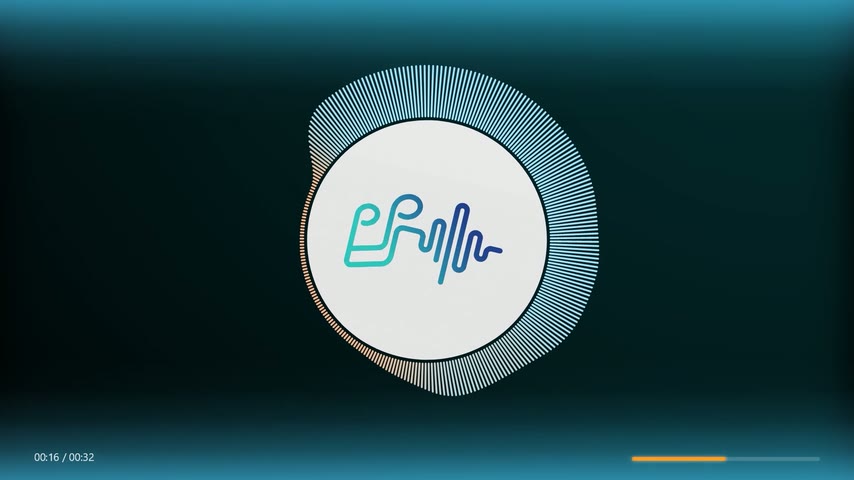 Fine Bars Sol Your cover art in a disc, surrounded by a dense ring of spectrum bars.
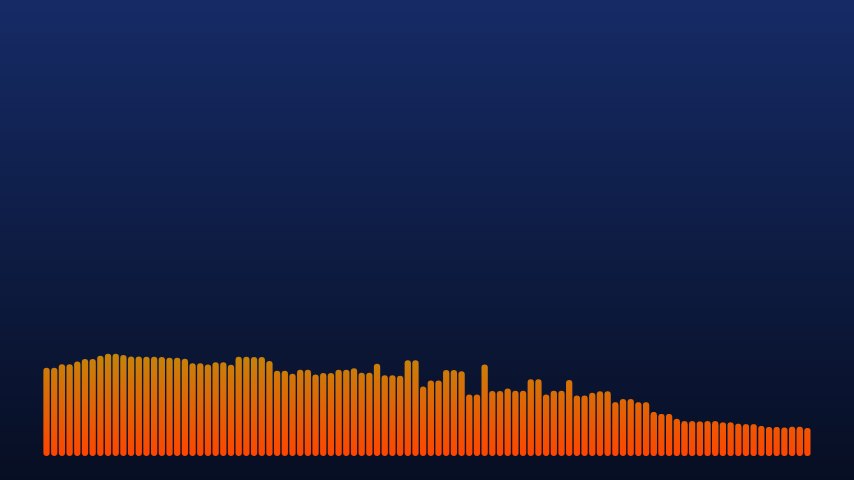 Classic Bars Do The classic audio spectrum: a row of bars along the bottom of the screen. Free.
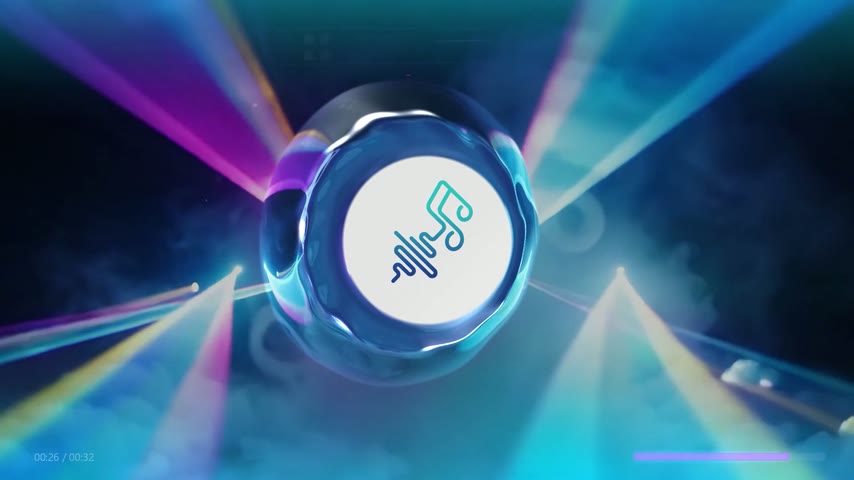 Water Ring Clef Our signature style: a ring of liquid that comes alive with your track.
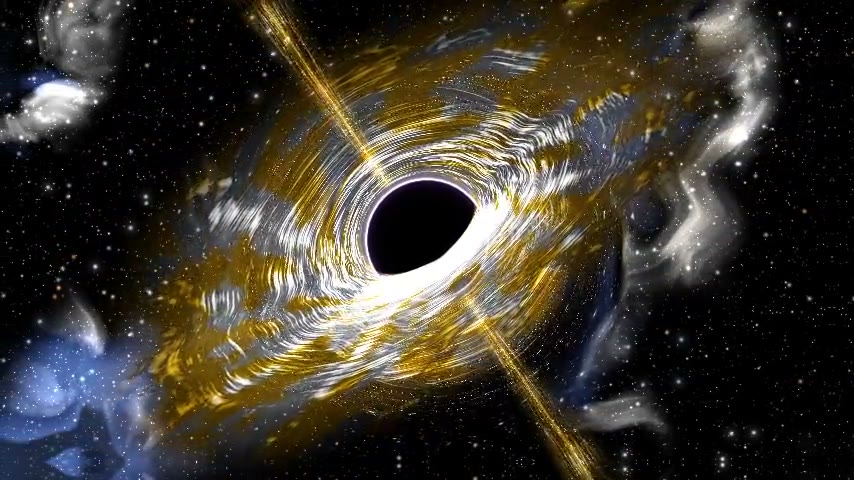 Event Horizon Clef A black hole with a glowing, swirling disc that bends the light around it.
Questions
Is it free?
Yes, to start. The free Do plan gives you 5 exports a month at 720p 30 fps in 16:9 landscape, with the styles Rainbow Circular, Bars Disc, Classic Bars. A small watermark is on by default and you can switch it off when you export, and your own background image works with Classic Bars. Sol and Clef add higher resolutions, vertical and square formats, more styles and your own background image on every style. See the plans.
How long does the export take?
Usually a few minutes, depending on the length of the song, the resolution and the style. You can close the page while it renders; we email you when the video is ready.
Can I monetise the video on YouTube?
Yes, on every plan, as long as you have the rights to the music. If you exported with the watermark on, it must stay in the video.
Can I use a song I don’t own?
Only if you own the music or have permission to use it. Making a video with DoReMiWave does not give you any rights to the song. Platforms detect copyrighted music and may claim or block the video; if the music is yours or licensed, you can dispute the claim. See this answer.
Ready to make yours?
Upload your song, pick a style and export. The free plan needs no card.
Open the Studio